
My computer is too slow
The first step to fixing a slow computer is to verify that your machine is the actual source of the problem. Videos that seem to buffer forever, and websites that take ages to load, may not be your computer’s fault. Many people mistakenly identify a slow system as the problem when it’s actually not the computer, but rather their broadband connection. We recommend a speed test site, such as speedtest.net to test your broadband speed.
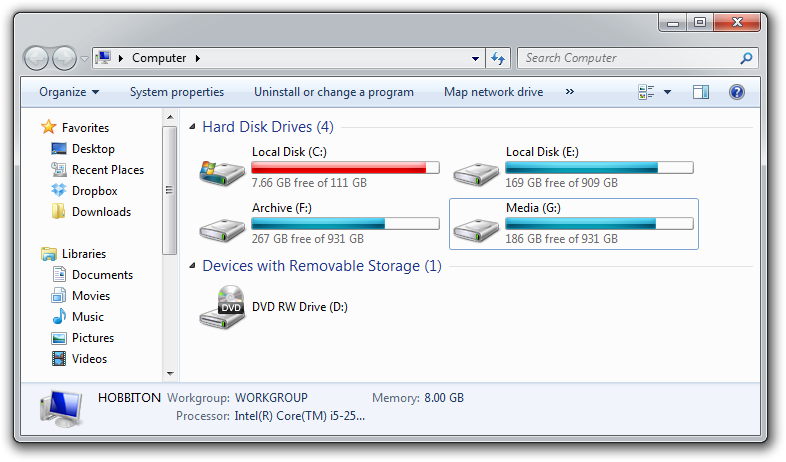
If the problem is your PC, check whether you have plenty of free space on the hard drive holding your operating system. Windows needs room to create files while your system is running. If your hard drive is maxed out, performance suffers. Now is the perfect time to clear some space.
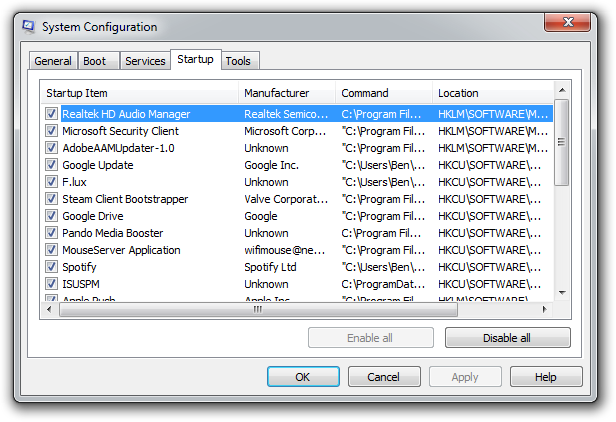
If all of that checks out, it may just be a lot of startup items causing poor performance. The startup items menu is your next-best bet for tackling slow performance. Many applications launch automatically when your machine boots up, which can stretch out boot time—especially on older, slower PCs. Make a habit of trimming the startup items. Open the tool by right clicking the taskbar, and selecting Task Manager. From there, click the "Startup Apps" icon from the right hand column.
Checking the Startup Item and Manufacturer columns is the best way to figure out which potential performance-killers you can safely disable. Avoid messing with any of the services and programs that have Microsoft Corporation listed as the manufacturer. Items such as Google Update, Pando Media Booster, Spotify, and Steam Client Bootstrapper are all fair game. Regardless, err on the side of caution: If you’re not sure what the program or service does, don’t disable it.
0 Comments